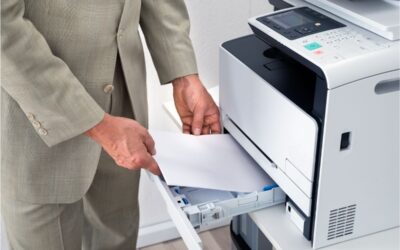

A printer with a paper tray is the quiet workhorse of any office. You load the paper once, and the machine does the rest. No hand-feeding. No stopping in the middle of a big print job. It sounds simple, but the tray is one of the most important parts of any printer you buy.
Tray size shapes how often you refill. Tray design shapes what you can print on. And tray count decides whether you can keep letterhead, plain paper, and labels loaded at the same time. Get it right, and printing feels effortless. Get it wrong, and you spend your week feeding paper into a slot.
This guide walks you through tray types, capacity, features, models, and care. You will also find a FAQ at the end for quick answers.
What Is a Printer Paper Tray?
A paper tray is the drawer or shelf that holds blank paper before it prints. Inside the tray, guides hold the stack straight. Rollers then grab the top sheet and pull it into the print path. When the tray is set up well, sheets feed one at a time in a clean, straight line.
Most desktop printers use a cassette-style tray that slides into the base. Smaller home models often use an upright tray at the back. Big office machines stack several trays in a tower. The idea stays the same in every case. The tray stores paper, keeps it aligned, and feeds it on demand.
The Main Types of Paper Trays
Not every tray does the same job. Here are the four you will meet most often.
- Input tray: This is the main drawer. It holds your everyday paper, usually letter- or legal-size. Capacity often runs from 100 to 550 sheets.
- Output tray: This is where finished pages land. A deep output tray matters more than people think. If it fills up, pages spill or curl.
- Multipurpose or bypass tray: This small tray folds out from the front or side. Use it for envelopes, labels, cardstock, and glossy paper. It usually holds 50 to 100 sheets.
- High-capacity or optional tray: These are add-on drawers you buy later. They bolt under the printer and push total capacity past 1,000 sheets.
Many offices use all four at once. Plain paper sits in the main tray. Letterhead sits in the second tray. Envelopes go in the bypass slot when needed.
Why Paper Tray Capacity Matters
Every refill is an interruption. You stop what you are doing, walk to the printer, open a ream, and load the drawer. Two minutes here and three minutes there add up fast across a whole team. Frequent breaks in focus also reduce output and increase stress at work.
Bigger trays fix that. A 100-sheet tray runs dry in a single client packet. A 520-sheet tray holds a full ream. Two of those trays hold a thousand sheets, which can cover a whole week in a small office. Fewer refills also mean fewer chances to load paper crooked, which is a common cause of jams.
How Much Tray Capacity Do You Need?
Start with your monthly page count. Then match it to a tray size using the table below.
| Setting | Pages per month | Suggested tray capacity |
|---|---|---|
| Home or student use | Under 300 | 100 to 150 sheets |
| Home office or solo pro | 300 to 1,000 | 250 sheets |
| Small business team | 1,000 to 3,000 | 250 to 550 sheets |
| Busy workgroup | 3,000 to 10,000 | Dual trays, 750 to 1,100 sheets |
| Large office or print room | Over 10,000 | 1,500 sheets or more |
When in doubt, size up. Paper rarely shrinks. A printer that can accept an optional drawer later gives you room to grow without having to make a new purchase.
Single Tray, Dual Tray, or Multi-Tray?
Single Tray Printers
One tray is fine for light use. These printers cost less and take up less desk space. The trade-off is simple. You can only keep one paper type loaded. Switching to envelopes or legal paper means swapping the stack by hand.
Dual Tray Printers
Two trays are the sweet spot for most businesses. You can keep letter paper in one drawer and legal or letterhead in the other. The driver then pulls from the right tray on its own. Models such as the Brother HL-L5210DWT pair a 250-sheet and a 520-sheet tray with a 100-sheet multipurpose slot, and the HL-L6210DWT uses two 520-sheet trays that expand to about 1,660 sheets.
Multi-Tray Printers
Three or more trays are suitable for law firms, schools, clinics, and print rooms. Each drawer can hold a different size or type of stock. Large multifunction units like the Lexmark CX825DTE reach around 1,750 sheets across their trays. You pay more up front, but you rarely stop to reload.
Paper Sizes and Media Your Tray Can Handle
Most trays are designed for letter- and legal-size paper. Many also adjust to A4, A5, and common photo sizes. Wide-format models go further. The Epson WorkForce Pro WF-7310, for example, uses two 250-sheet drawers and prints up to 13 by 19 inches.
Paper weight matters too. Standard copy paper is light and feeds easily. Cardstock, labels, and glossy sheets are heavier. Those belong in the bypass tray, which has a straighter path and gentler bend. Check the printer manual for the weight range each tray supports. Pushing past it is a fast way to cause jams.
Features to Look For Beyond the Tray
A great tray cannot save a weak printer. Compare these points as well.
- Print speed: Office laser models often run 30 to 50 pages per minute. Fast speed only helps if the tray can keep up.
- Automatic duplex: Two-sided printing cuts paper use nearly in half. It also stretches each tray refill.
- Connectivity: Look for Wi-Fi, Ethernet, and mobile printing so the whole team can share one machine.
- Toner or ink cost: High-yield cartridges lower your cost per page. Some office models print thousands of pages per cartridge.
- Security: Business printers may offer badge release, secure print, and network protection. That matters when trays sit in shared spaces.
- Tray expandability: Confirm that optional drawers are available for the model you choose.
How to Load a Paper Tray the Right Way
Good loading habits prevent most feed problems. Follow these steps.
- Pull the tray all the way out. Do not load it halfway open.
- Fan the stack with your thumb. This breaks static and stops double feeds.
- Tap the edges on a flat surface to make the stack square.
- Place the paper flat, with the print side facing the direction shown in your manual.
- Slide the width and length guides in until they touch the stack. Snug, not tight.
- Stay below the fill line inside the tray. Overloading is a top cause of jams.
- Push the tray back in fully, then confirm the size and type on the control panel.
That last step trips up a lot of people. If the panel says “letter” and the tray holds “legal,” you will see errors or crooked prints.
Common Paper Tray Problems and Simple Fixes
Paper Jams
Jams usually trace back to a few causes. Misaligned paper, an overfilled tray, dirty rollers, or the wrong paper size setting. Turn the printer off first. Then pull the sheet slowly in the normal feed direction. Never yank it. Torn scraps left inside will jam the machine again.
False Jam Messages
Sometimes the printer reports a jam, and you see nothing stuck. Dust or a tiny scrap may be blocking a sensor. Check the rear access door with a flashlight. Wipe the rollers with a damp, lint-free cloth. Then unplug the printer for about fifteen seconds and power it back on.
Multiple Sheets Feeding at Once
This is often humidity. Damp paper sticks together. Store reams in a dry cabinet and keep them sealed until use. Fanning the stack before loading helps too.
Skewed or Crooked Prints
Loose paper guides are the usual culprit. If the guides sit too far apart, the stack shifts as it feeds. Reset them so they rest lightly against the paper on both sides.
Simple Maintenance That Extends Tray Life
- Wipe the feed rollers every few months. Dust and paper fiber reduce grip.
- Vacuum or dust around the printer. Debris finds its way into open trays.
- Use quality paper that suits your printer. Cheap, rough stock sheds fiber.
- Do not mix paper weights in the same tray.
- Run cleaning sheets if your machine supports them.
- Replace worn rollers when feeding gets unreliable. Rollers are wear parts.
Ten minutes of care each quarter prevents hours of downtime later.
Should You Buy or Lease a High-Capacity Printer?
Buying makes sense for small teams and modest volumes. A solid dual-tray laser printer is affordable, and you own it outright. You handle your own supplies and repairs.
Leasing is well-suited to larger offices with heavy print loads. Multifunction machines with tall tray towers carry a high sticker price. A lease spreads the cost across months and usually bundles service, toner, and parts. If your printer runs all day, that support has real value. Compare the total cost over three to five years before you decide.
Frequently Asked Questions
How many sheets does a standard printer paper tray hold?
Home printers usually hold 100 to 150 sheets. Business models start around 250 sheets. Office laser printers often use 520-sheet trays, and optional drawers can push totals past 1,600 sheets.
Can I add a second paper tray to my printer?
Often yes, but only if the maker sells an optional tray for your model. Check the accessories list for your exact model number. Trays are not interchangeable between brands or product lines.
What is the difference between a paper tray and a bypass tray?
The main tray holds your everyday paper in bulk. The bypass tray, also called a multipurpose tray, holds a small stack of special media. Use it for envelopes, labels, and heavy card stock.
Why does my printer say the tray is empty when it has paper in it?
The tray may not be seated fully. Push it in until it clicks. If the message stays, a sensor may be dusty, or the paper size setting may be wrong. A quick power cycle clears many of these errors.
Do dual tray printers cost much more?
They cost more than entry models, but the gap is smaller than most buyers expect. For teams that print daily, the time saved on refills and paper swaps usually pays for the difference within the first year.
Can I keep two paper sizes loaded at the same time?
Yes, if your printer has two or more trays. Set each tray to its own size in the control panel. The printer then automatically selects the correct drawer for each job.
How often should I clean my paper tray?
Every three months works for most offices. Clean it sooner if you print heavily or see jams more than once a week. Wipe the rollers and clear dust from the tray base.
Final Thoughts: Why Businesses Partner with BDS
Choosing the right paper tray is really about choosing the right partner. BDS first evaluates your print environment and user behavior. Then we right-size the technology for your team. That means you get the tray capacity, device count, and paper handling your office actually needs. No overspending on capacity you will never use.
Here is what that partnership delivers:
- The best brands: fully supported: BDS is an authorized dealer for Kyocera, Canon, Xerox, HP, Konica Minolta, and Ricoh. We sell and service copiers, MFPs, and large-format printers.
- Maximum uptime: Every copier system we sell includes our complimentary Preventative Maintenance Program. We catch small issues before they stop your day.
- Lower print costs: Printing can consume 3 to 5 percent of annual revenue. Our Managed Print Services help you identify, reduce, and manage that total cost.
- Fewer supply surprises: We monitor toner levels and automate replenishment, so a big job never stalls on an empty cartridge.
- Flexible ways to buy: Purchase, lease, or choose a certified pre-owned system. We match the terms to your budget.
- Local teams who show up: With offices across MA, CT, RI, NH, VT, ME, NY, and FL, our certified technicians are nearby when you need them.
For more than 40 years, our mission has stayed the same. We provide unparalleled technology and impeccable support while maximizing system uptime. That focus is why law firms, schools, healthcare providers, insurance agencies, and accounting firms across New England, New York, and Florida trust BDS with their print environment.
Ready to stop refilling trays and start printing? Contact BDS for a complimentary print assessment. We will review your devices, volumes, and workflows, and then recommend the right fit for your office.