A new printer should make work easier, not harder. The good news is that setting up a printer is simple once you know the steps. This guide covers wired and wireless setups for both Windows and Mac.
Step 1: Unbox and Prepare Your Printer
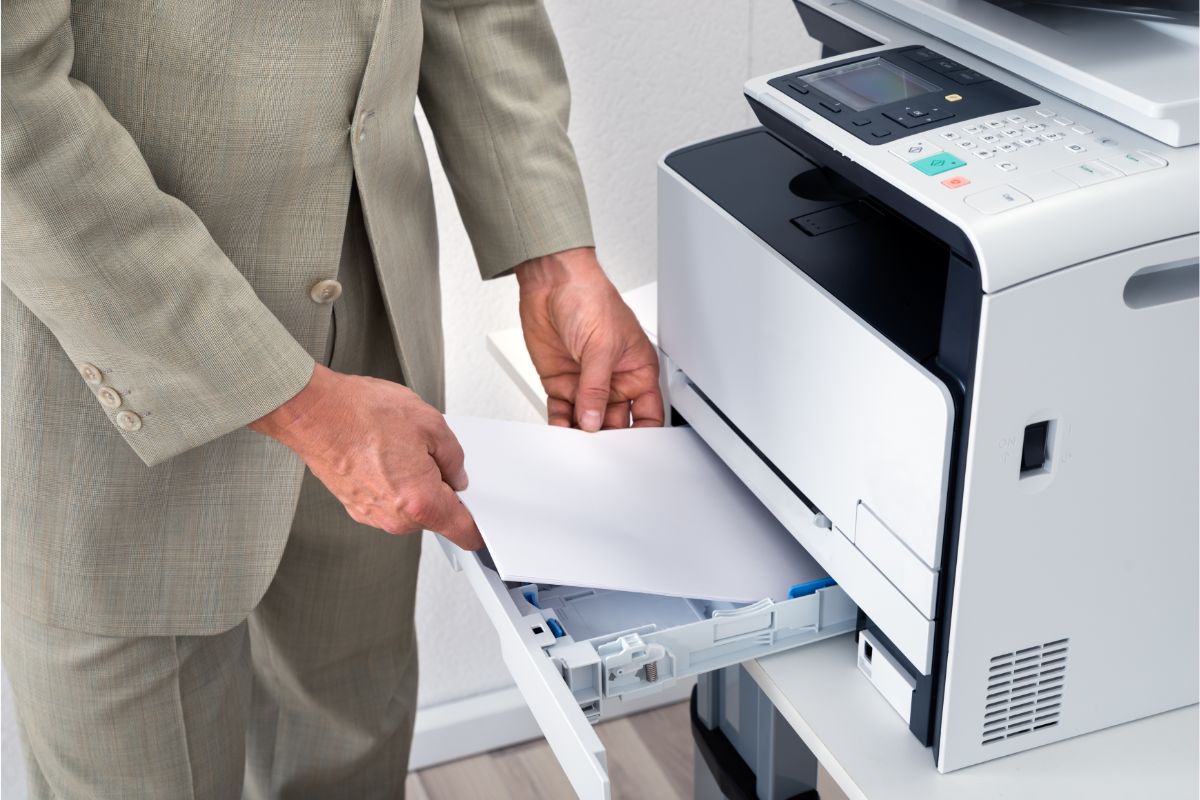
Start by removing all tape and packing material. Load paper into the tray and install the ink or toner cartridges. Plug in the power cord and turn the printer on. Follow the on-screen instructions on the printer’s display to select a language and complete the basic settings.
Step 2: Choose How to Connect
Next, decide how you want to connect the printer to your computer. You have three main options:
- USB cable: Plug the cable into the printer and your computer. It’s the fastest option for one user.
- Ethernet: Connect the printer to your router with a network cable. This works well in busy offices.
- Wi-Fi: Set up a wireless printer by using its menu to find your network and enter the password. Make sure it joins the same network as your computer.
Step 3: Add a Printer on Windows
Windows makes it easy to add a printer. Open Settings, then select Bluetooth & devices and choose Printers & scanners. Click Add device and wait while Windows searches. When your model appears, select the printer from the list and click Add device.
If your printer does not appear, select “The printer that I want isn’t listed” to add it manually.
Step 4: Add a Printer on a Mac
On a Mac, open the Apple menu and go to System Settings. On older versions, this is called System Preferences. Choose Printers & Scanners, then click the plus button. Pick your printer and click Add. Most modern printers work with AirPrint, so macOS often sets them up automatically.
Step 5: Install Printer Drivers
Printer drivers let your computer talk to your printer. Windows and macOS install basic drivers for most models. However, the full driver package from the maker’s website unlocks extra features. This is key if you own a printer-scanner combo, since scanning tools often need their own software.
Step 6: Print a Test Page
Now it’s time to make sure everything works. Open your printer settings and select Print Test Page. If the page comes out clear, you’re done. If not, check the cables, restart both devices, and try again.
Frequently Asked Questions
Why won’t my computer find my printer?
Make sure the printer is on and connected to the same network as your computer. Restarting both devices fixes most issues.
Do I need to install printer drivers?
Not always. Most systems add basic drivers on their own. For full functionality, download the latest drivers from the manufacturer’s website.
How do I connect a wireless printer?
Use the printer’s control panel to find your Wi-Fi network and enter the password. Then add the printer from your computer’s settings.
How long does it take to set up a printer?
Most home and small office printers take 10 to 20 minutes. Larger office copiers may need a pro to set up.
Why Choose BDS
Setting up one printer is simple. Keeping a full fleet of office printers running is a bigger job. That’s where BDS comes in. For more than 40 years, BDS has helped businesses across New England and Florida find the right print technology. We offer top brands like Kyocera, Canon, HP, and Ricoh, plus expert setup and training on install day. Our Preventative Maintenance Program helps find problems before they start, so your team stays productive.
Ready to take the stress out of printing? Talk with our team today.