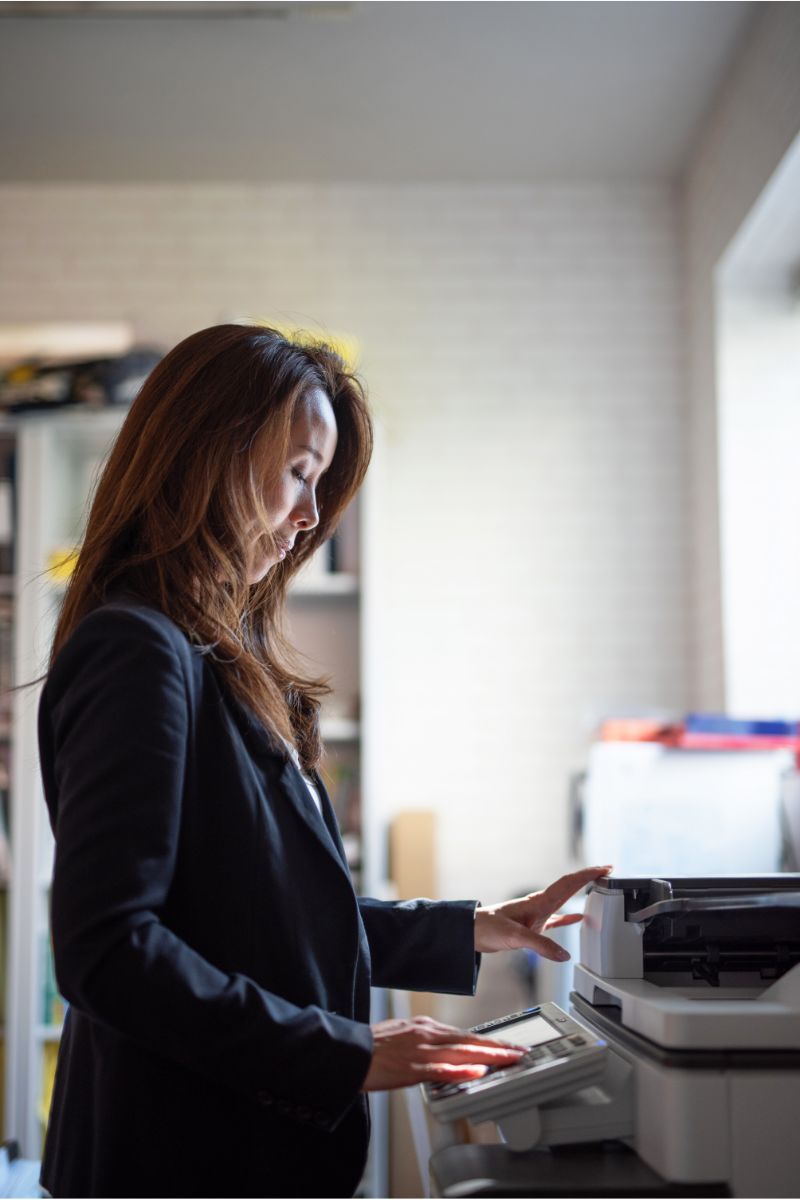
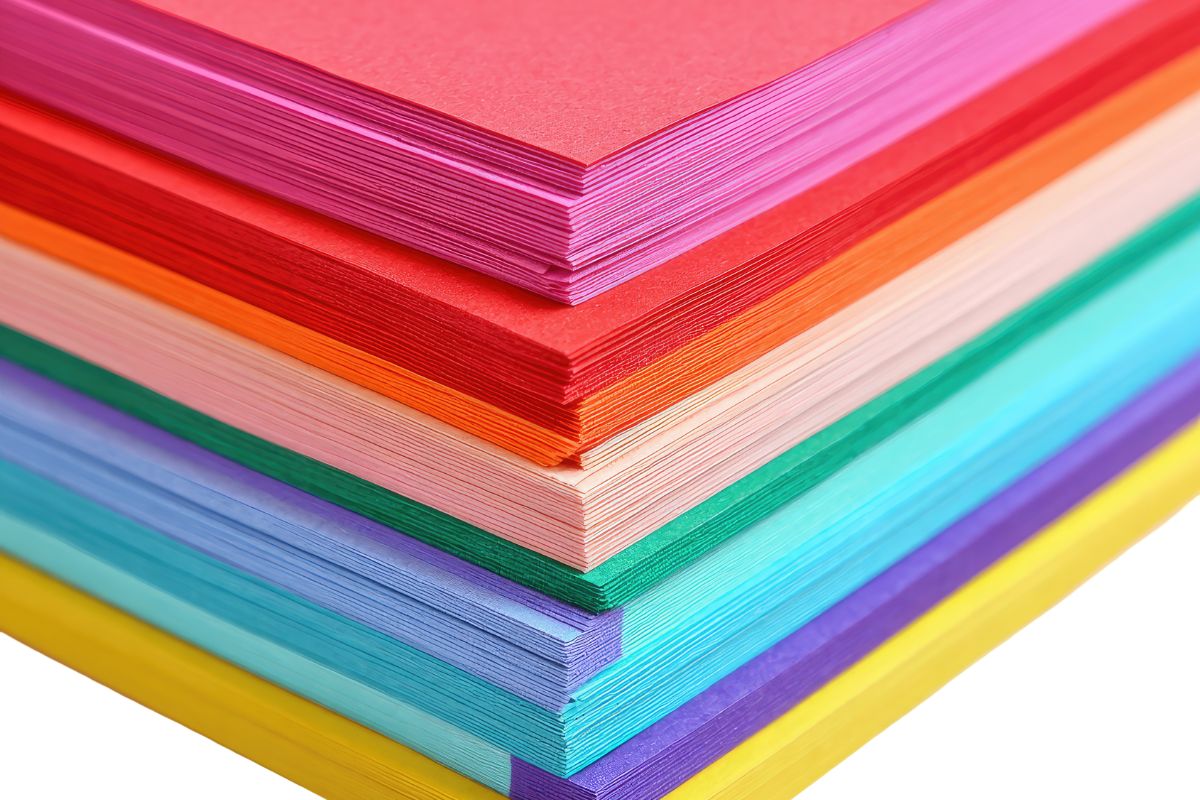
Xerox copiers, with their precise engineering and flexible media handling, can tackle heavier paper stocks, giving businesses the confidence to produce professional-quality materials in-house without skipping a beat. If you have ever tried to feed a thick, stiff sheet into a standard office printer, you know the pain: jams, misfeeds, and ruined projects.
Beyond being frustrating and time-consuming, it makes you question why you even attempted it in-house in the first place. But for many industries that utilize this paper type, like creative marketing teams or legal offices creating sturdy presentation materials, printing on cardstock is not optional. Instead, it is a necessity in day-to-day operations.
Xerox copiers stand out because they are designed to handle more than just everyday paper. Combining robust feed mechanisms, adjustable paper trays, and support for various media types allows these devices to manage heavier stocks while maintaining consistent quality. Knowing exactly which models can handle cardstock, and under what conditions, is crucial for achieving reliable results without the frustration of trial and error.
Understanding Paper Handling and Stock Compatibility

Investing in a knowledgeable print provider is crucial because investing in the wrong one will leave you questioning how your device interprets media. This is frustrating, as understanding this process can save you a substantial amount of time, money, and resources in the long term. For instance, not all cardstock is created equal; meaning different weights, finishes, and textures will undoubtedly affect your printing processes. Even slight differences can impact print quality and machine performance.
As a certified Xerox dealer, the BDS team are experts on paper compatibility with modern Xerox models. Xerox copiers categorize by media type, specifying which trays can accept thicker sheets and which support duplex printing. In practice, this means heavier stocks may require manual feed trays or specific drawer adjustments to prevent misfeeds and jams.
For instance, a standard 110-130 gsm cardstock may run smoothly through a mid-range Xerox copier, while textured or specialty stocks might need the bypass tray. This is where knowing your device’s specifications, and investing in a trusted print provider like BDS, becomes essential. Our team can offer you information regarding the product support guides for paper type limits as well as match you with the correct model for your paper needs. Again, we cannot stress enough how understanding these parameters prevents downtime, protects your investment, and ensures output quality is professional every time.
Xerox Models That Excel with Cardstock
Cardstock is not the most traditional paper type, so not all Xerox copiers will offer compatibility. Entry-level devices designed primarily for high-volume standard office printing may struggle with anything thicker than typical copier paper. Conversely, multifunction printers and higher-end production models are engineered with feed paths, rollers, and fuser components built to accommodate a broader range of media types.
Devices like Xerox Versa Link and AltaLink series have earned a reputation in office environments for their ability to handle heavier weights reliably. These copiers support multiple input sources, adjustable paper trays, and precise calibration settings, which allow users to feed cardstock without risking the device or sacrificing print quality. Additionally, Xerox’s enterprise-level machines include detailed media libraries, ensuring every paper type, from lightweight letterhead to 110 lb. cardstock, is recognized and processed optimally.
Best Practices for Printing on Cardstock
Even with a capable Xerox machine, understanding proper handling can make the difference between flawless prints and constant paper jams. Here’s where expertise comes into play:
- Always check the machine’s media specifications before loading. Know the maximum supported paper weight and whether duplex printing is recommended for that stock.
- Adjust tray settings according to paper size and thickness. Misaligned trays are one of the most common causes of misfeeds.
- Use the bypass or manual feed tray for specialty cardstock, particularly textured finishes. Feeding sheets one at a time reduces stress on rollers.
- Allow the copier to warm up adequately. Temperature fluctuations can affect how the fuser bonds toner to thicker media.
- Rotate stock when running long jobs to prevent uneven wear or curling.
Following these guidelines keeps machines running smoothly and ensures consistent, professional output, even for complex print projects.
Leveraging BDS Expertise
Understanding which Xerox copiers print cardstock is only the first step. The real challenge lies in integrating those capabilities seamlessly into your office workflow. That is where BDS adds value. With over 40+ years of experience offering our expertise services to local New England and Florida businesses, BDS provides customizable solutions that address your copier needs and concerns.
Our team adopts a different approach from most print providers. We evaluate your printing needs alongside your existing equipment and workflow to recommend the right models, tray configurations, and settings for your office. We guide businesses through media handling nuances and provide on-site support for troubleshooting. This is particularly important for offices that rely on frequent print runs for high-quality marketing materials, client presentations, or internal documents.
By partnering with a certified Xerox reseller like BDS, businesses gain more than a machine; they gain assurance that their copiers are optimized for all supported media, with processes and advice that minimize downtime and maximize print quality. The question, “What Xerox copiers print cardstock?” has a straightforward answer for anyone familiar with Xerox’s modern MFP lineup.
Many of them do, but knowing the limits, settings, and best practices is what separates a functional copier from a reliable, productivity-enhancing tool. With the right machine, the right setup, and the right guidance, printing on cardstock becomes a seamless part of your workflow rather than a source of frustration. To stay updated on the latest industry trends and news, follow BDS on LinkedIn, Facebook, YouTube, Instagram, and TikTok today.
Frequently Asked Questions
Q: Can all Xerox copiers handle cardstock, or are only certain models capable?
A: Not all models can print heavier stock. Entry-level copiers may struggle with cardstock, while mid-range and high-end multifunction devices typically support it reliably. Always consult the machine’s media specifications to confirm the maximum paper weight and recommended trays for cardstock.
Q: Does printing on cardstock require special tray settings or maintenance adjustments?
A: Yes. Correct tray settings, manual feed for specialty stocks, and routine inspection of rollers and fusers are critical. Using the bypass tray for textured or thicker sheets can reduce jams and follow Xerox’s recommended procedures to ensure consistent quality without damaging the machine.