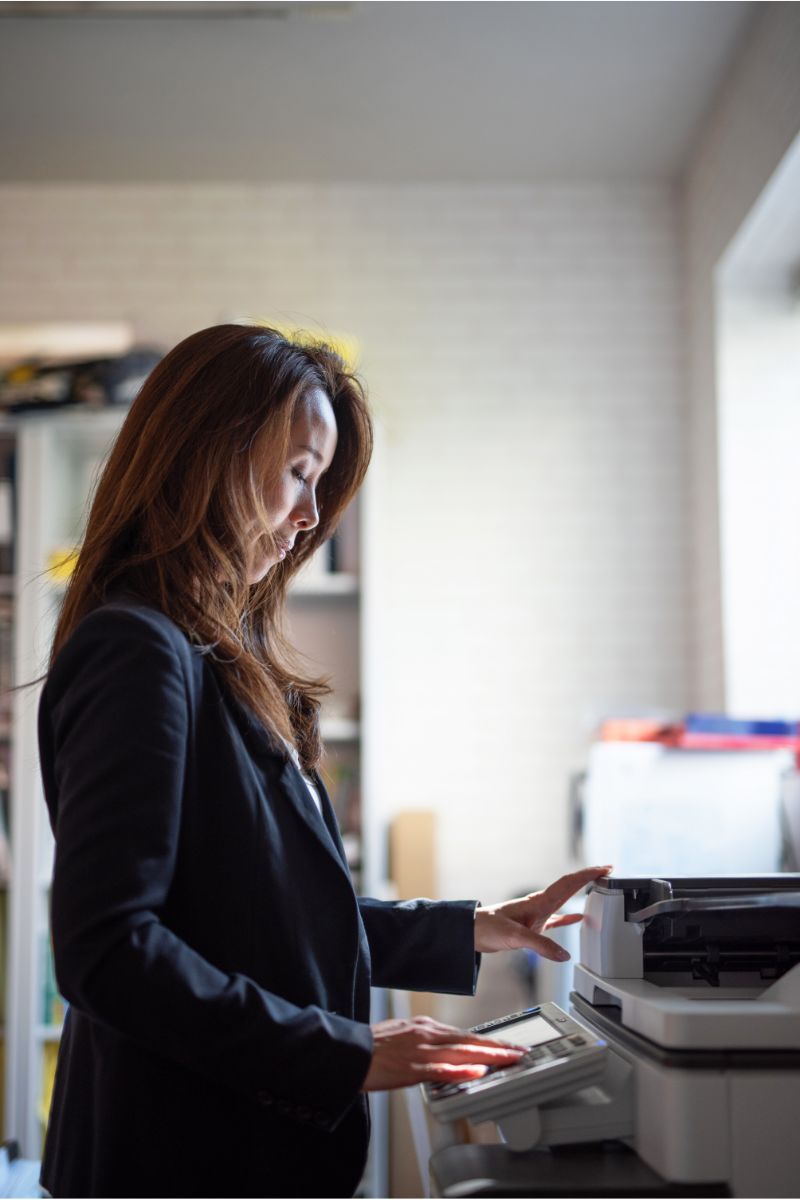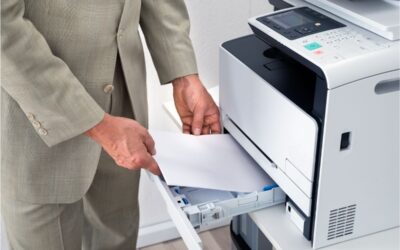

Why Top Rated Copy Machines Matter
A copy machine is no longer a simple office device that sits in the corner and makes duplicates. For many businesses, it is a central workflow tool. The best models now print, scan, copy, route digital files, support cloud access, protect sensitive data, and help employees work from laptops, phones, and tablets. That is why choosing from top rated copy machines is an important business decision, not just an equipment purchase.
The right device can save time, reduce waste, and improve document quality. The wrong device can slow down teams, raise supply costs, and create security gaps. Whether your office needs a compact laser printer for a small team or a larger multifunction system for a busy workgroup, the goal is the same: reliable output, simple use, and predictable costs.
What Makes a Copy Machine Top Rated?
Top rated copy machines usually perform well in several key areas. They produce sharp text, handle repeated workloads, connect easily to your network, and offer helpful features without being difficult to manage. Many of today’s best devices are multifunction printers, often called MFPs, because they combine print, scan, and copy functions in one system.
Speed is also important. Offices that print invoices, contracts, reports, proposals, and training materials need strong print speeds so employees are not waiting at the machine. A small office may be fine with 25-35 pages per minute. A larger office may need 45 pages per minute or more, especially if many users share the device.
Color Laser vs. Black and White Copy Machines
One of the first decisions is whether your office needs color laser output or only black and white printing. Color laser models are a strong choice for companies that print sales materials, charts, presentations, signs, and client-facing documents. They make color prints look polished and consistent, while still handling everyday text documents.
A monochrome print device is usually better suited when the office primarily prints forms, contracts, letters, shipping documents, or internal reports. These machines often cost less to buy and less to operate. They are also simple to maintain because they use only black toner. If your team rarely needs color, a black and white laser machine can be the smarter long-term investment.
Key Features to Compare Before Buying
Before choosing a model, compare the features that affect daily use. Start with monthly volume. A machine designed for a light home office may not survive a demanding business setting. Next, look at print speeds, paper capacity, toner yield, scan quality, and automatic document feeder size. These details decide how well the device supports your staff.
Connectivity is another major factor. Many offices need Ethernet for stable shared access, wi fi for flexible placement, and mobile printing for employees who work from phones or tablets. If your team uses cloud storage, look for models that can scan directly to common business destinations. Simple touchscreens, searchable scan options, and preset workflows can save time every day.
Security Features Should Not Be Optional
Modern copy machines often handle confidential information. They may process payroll records, legal documents, health forms, customer data, price lists, and internal reports. For that reason, security features are just as important as speed or print quality. Businesses should look for user authentication, secure print release, encrypted data transfer, and the ability to control access by department or employee.
Secure print release is especially useful in shared offices. Instead of sending a document to the tray where anyone can pick it up, the user enters a code or badge at the machine before printing begins. This reduces accidental exposure and helps protect private records. For regulated industries, advanced security tools may be a requirement, not a bonus.
Best Copy Machine Types by Office Need
For a small office, a compact color laser multifunction printer is often the best fit. These machines usually offer high-quality text, useful scanning tools, duplex printing, and wireless connectivity without taking up too much space. They are a good match for teams that print a mix of reports, invoices, flyers, and color prints.
For a document-heavy office, a larger workgroup copier may be better. These devices usually have faster print speeds, larger paper trays, heavier duty cycles, and better finishing options. Some can staple, collate, sort, or handle larger paper sizes. A high-volume department should also compare service plans, response times, and supply costs before signing a lease or purchase agreement.
Top Rated Copy Machine Features for Productivity
Productivity comes from more than raw speed. A machine with a 50-sheet automatic document feeder can scan a stack of pages while an employee returns to other work. Duplex scanning is even better because it captures both sides without manual flipping. For busy offices, these features make the print, scan, and copy process faster and more accurate.
Mobile printing also improves productivity. Employees can send files from phones, tablets, and laptops without moving documents between devices. This is useful for sales teams, hybrid workers, and staff members who move between offices. Reliable wi-fi and simple app support can reduce support calls and make the copier easier for everyone to use.
How to Judge Print Quality
Print quality depends on the work your office produces. For text-heavy documents, sharp letters and clean lines matter most. A laser printer is usually excellent for this because it creates crisp text at high speed. For charts, brochures, and proposals, color accuracy and smooth graphics become more important.
If you regularly print customer-facing sales sheets, do not judge only by the rated resolution. Ask to see sample color prints on the paper your office actually uses. Paper weight, toner coverage, and finishing options can affect the final result. For routine internal documents, a dependable monochrome print model may deliver the best value.
Total Cost of Ownership
The purchase price is only one part of the cost. Toner, drums, service, maintenance kits, paper, and downtime all affect the full cost of ownership. Two machines with similar prices can have very different long-term costs if one uses high-yield supplies and the other needs frequent replacements.
Businesses should estimate monthly page volume before comparing models. A small team that prints 1,000 pages a month does not need the same copier as a 40-person office that prints 25,000 pages a month. Choosing too few machines can lead to breakdowns. Choosing too many machines can create unnecessary lease expenses.
Questions to Ask Before You Choose
- How many pages does the office print each month?
- Do employees need color laser output, or are most documents black and white?
- Are print speeds fast enough for peak work periods?
- Does the machine support mobile printing, WiFi, Ethernet, and cloud scanning?
- Are the security features strong enough for sensitive documents?
- Can the device handle print, scan, and copy tasks without slowing the team?
- What is the expected cost per page for toner and supplies?
Recommended Approach for Comparing Models
Start with workload, not brand. List the jobs your office completes every week. Include invoices, reports, contracts, marketing handouts, training packets, and scanned files. Then decide how often those jobs require color prints, fast copying, large paper capacity, or secure release. This method helps you avoid paying for features you will not use.
Next, compare a short list of machines in the same class. Do not compare a compact desktop device with a floor-standing production copier unless both are realistic options for your office. Look at service coverage, supply availability, user reviews, and warranty support. A slightly higher monthly payment may be worth it if the copier is more reliable and easier to maintain.
FAQ About Top Rated Copy Machines
What is the best copy machine for a small office?
The best choice for a small office is usually a compact multifunction laser printer with print, scan, copy features, duplex printing, wireless access, and an automatic document feeder. If your team prints brochures or reports with graphics, choose a color laser. If most work is forms and contracts, choose black and white.
Are color laser copy machines worth it?
Yes, color laser machines are worth it when your office regularly prints presentations, charts, proposals, signs, or marketing materials. They produce clean color prints and strong text output. However, if your office rarely needs color, a monochrome print machine may cost less to run.
What print speeds should a business look for?
Small teams may be comfortable with 25-35 pages per minute. Larger offices should look for higher print speeds, especially when several people share one device. Remember that rated speeds may differ from real-world performance when printing mixed documents or double-sided pages.
Do copy machines need security features?
Yes. Many copy machines store, transmit, or process sensitive information. Security features such as user authentication, secure print release, encryption, and access controls help protect business records and reduce the chance of confidential documents being exposed.
Is WiFi important for office copy machines?
Wi-Fi is helpful when you need flexible placement or easy access for laptops and mobile devices. For larger offices, Ethernet may still be the most stable choice. Many businesses use both Wi-Fi and wired networks to support different users and locations.
Final Thoughts
Top rated copy machines help offices work faster, protect information, and produce better documents. The best choice depends on your monthly volume, color needs, scan workflow, connection requirements, and budget. A small team may need a compact color laser device with mobile printing. In contrast, a larger department may need a faster floor-standing copier with advanced security features and higher paper capacity.
Before you buy or lease, review your real document habits. Count how often employees copy, print, scan, and share documents. Then match those needs to print speeds, toner costs, color capability, and support options. When you choose the right machine, your office gains a reliable document hub that supports daily work instead of slowing it down.