
Paper costs add up fast. So does the time spent fixing print jobs that come out wrong. Learning how to print double-sided is one of the easiest ways to save money, cut waste, and make your documents look more polished. The good news is that most modern printers make it simple. In this guide, we’ll walk through how to print double-sided on Windows, Mac, and office copiers. We’ll also cover manual options, quick fixes, and answers to common questions.
What Is Duplex Printing?
Duplex printing is the technical term for printing on both sides of a sheet of paper. Some printers do this on their own. This is called automatic duplex printing. The printer prints one side, pulls the page back in, flips it, and prints the other side. Other printers need your help. With manual duplex printing, the printer prints one side, and you flip the stack and feed it back in. Both methods work. Automatic is just faster and easier.
Why Double-Sided Printing Matters
Double-sided printing can cut your paper use by up to half. For a busy office, that adds up to real savings over a year. It also means less storage space, lighter files, and lower mailing costs. There’s a green win, too. Less paper means fewer trees cut down and less energy used to make and ship it. Many companies now set double-sided printing as the default to support their sustainability goals. Plus, two-sided pages simply look more professional for reports, booklets, and handouts.
How to Print Double-Sided in Windows
Most Windows programs use the same basic steps:
- Open your document and press Ctrl + P.
- Choose your printer from the list.
- Look for a setting called “Print on Both Sides,” “Two-Sided,” or “Duplex.” In Microsoft Word, you’ll find it under Settings, where it defaults to “Print One Sided”.
- Pick “Flip pages on long edge” for standard documents. Pick “Flip pages on short edge” for landscape pages or calendars.
- Click Print.
Don’t see a two-sided option? Click Printer Properties. The setting is often on the Layout or Finishing tab.
How to Print Double-Sided on a Mac
- Open your document and press Command + P.
- Choose your printer.
- Find the “Two-Sided” option. If you don’t see it, click Show Details.
- Choose Long-Edge binding or Short-Edge binding.
- Click Print.
Some apps place this option in the Layout menu. If it’s grayed out, your printer may not support automatic duplex printing, or its driver may need an update.
How to Print Double-Sided on an Office Copier
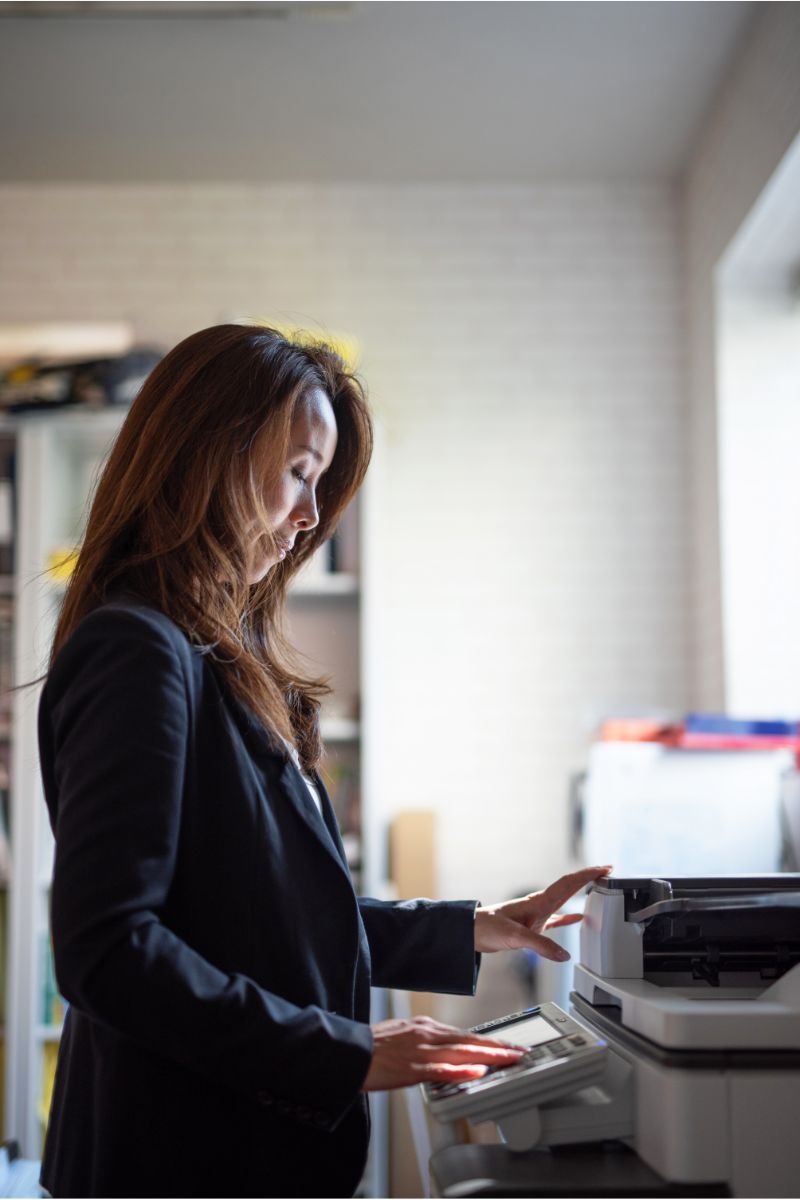
Most office copiers and multifunction printers handle duplex printing with ease. You can usually print double-sided in two ways. From your computer, follow the steps above and pick the copier as your printer. At the copier itself, tap Copy or Print on the touchscreen. Then look for a “Duplex,” “2-Sided,” or “1 to 2” option. Many IT teams set double-sided as the default for every device. This one change can lower paper costs across the whole company.
How to Print on Both Sides Manually
No automatic duplex feature? No problem. You can still get double-sided pages with a few extra steps:
- In the print window, choose “Manually Print on Both Sides” or “Print Odd Pages.”
- Print the odd pages first.
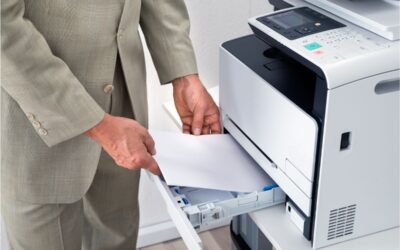
- Take the stack, flip it, and place it back in the tray. Check your printer guide for the right way to load it.
- Print the even pages.
Tip: Run a two-page test first. It’s the easiest way to learn how your printer feeds paper, and it saves you from reprinting a long job.
Tips for Better Double-Sided Results
- Use the right paper. Thin paper can let ink show through. Try 24 lb. paper or heavier for a cleaner look.
- Check your margins. Leave extra room on the inside edge if you plan to staple, bind, or hole-punch.
- Make it the default. Save time by setting two-sided as the standard in your printer settings.
- Update your drivers. Old drivers can hide the side printing options you need.
- Watch for jams. If pages jam often, clean the rollers or call for service.
Frequently Asked Questions
Can every printer print double-sided?
No. Many newer printers support automatic duplex printing, but some low-cost models don’t. You can still print double-sided using the manual method.
What’s the difference between the long edge and the short edge?
Long edge flips pages like a book. Short edge flips pages like a notepad or wall calendar. Use the long edge for most documents.
Why are my back pages upside down?
You likely picked the wrong flip setting. Switch between the long and short edges, then try again.
Does double-sided printing really save money?
Yes. It can cut paper use by up to 50 percent. That lowers supply costs, storage needs, and waste.
How do I make double-sided printing the default?
On Windows, open Printers & scanners, select your printer, then choose Printing preferences. Turn on two-sided and save. On a Mac, set up your options in the print window and save them as a preset. For office copiers, your IT team or print provider can set it for every user.
Why Choose BDS
Knowing how to print double-sided is a smart first step. But the biggest savings come from a print setup built around the way your team works. That’s where BDS comes in. BDS helps businesses choose, set up, and manage the right printers, copiers, and document tools. We can set duplex printing as the default across your fleet, track usage, and help you cut waste without slowing anyone down. Our service team keeps your devices running, so you spend less time on jams and more time on the work that matters.
Ready to print smarter and spend less? Contact us today to see why businesses choose BDS for their print and document needs.